
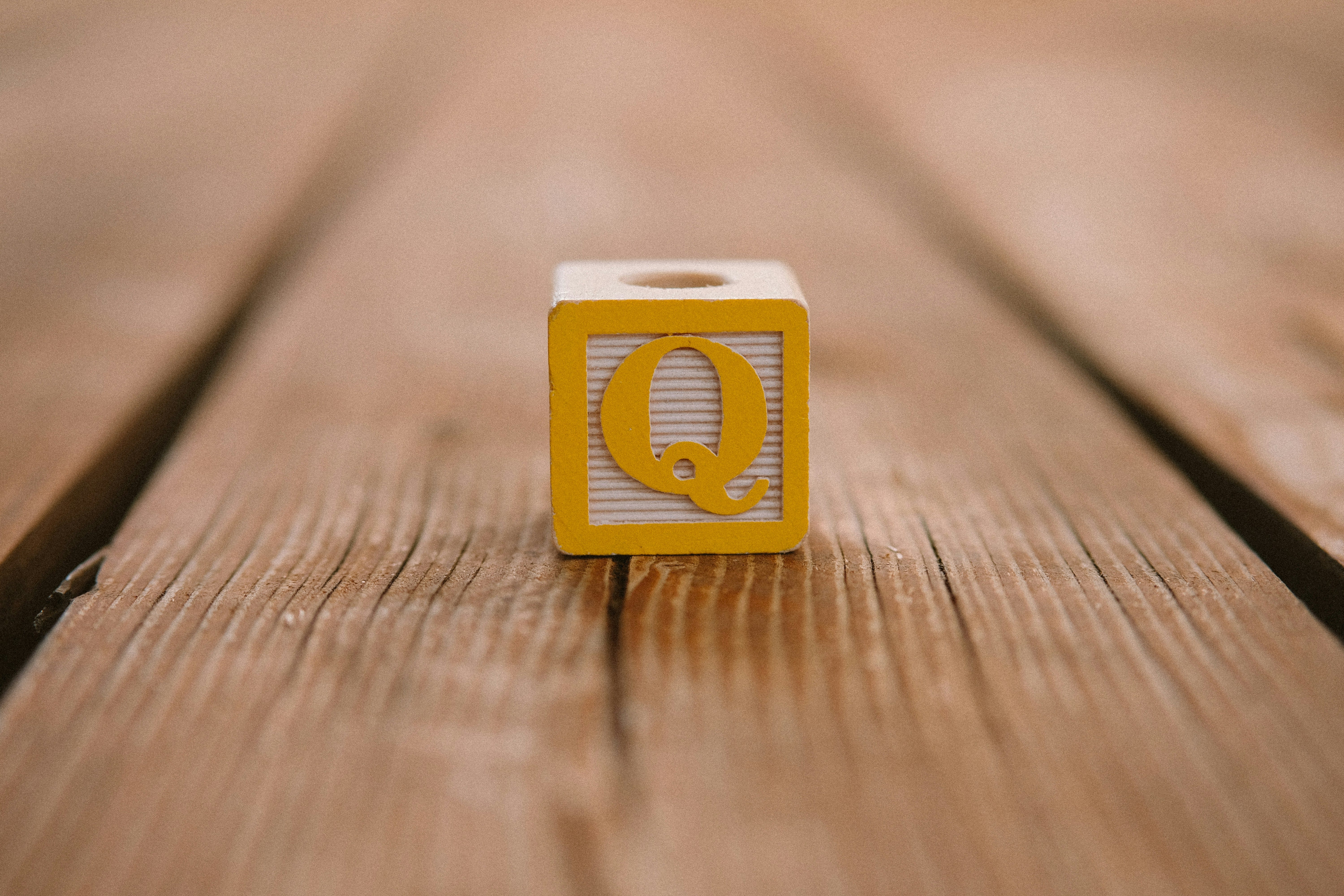
One of the reasons that I love the letter Q is because it is very easy to find on the keyboard. Q sits right next to my left pinky. I could find it blindfolded.
I work with my left hand on the keyboard and my right hand moving back and forth from the keyboard to the mouse. My left hand is always great for text automation macros and quick access because of this.
Why Q Works
It’s the best letter for automations and macros because it is one of the least used letters in the alphabet. When I started setting up shortcuts, I used semi-colon, period or Z. These all cause conflicts at some point with words or with other shortcuts like semi-colon being used for emojis in Slack.
You may be asking why the letter Q when X and Z are right there too! My thought is that Q is almost always followed up by the letter U, which no other letter follows as much as the letter Q does. Doubling up on Q (qq) makes it even rarer as no English word starts with that.
How I Use It
You might be curious about how a letter can be used as an automation, but with Keyboard Maestro, you can set up hot key automations based on text strings. I can type the letters ‘qq’ and then start typing words that can trigger automations. I have almost 100 macros set up that start with ‘qq’. It’s as simple as typing ‘qqaddress’ which automatically inserts my address.
Need some examples?
qqemail→ your emailqqsig→ email signatureqqbio→ short bioqqcal→ “Here’s my calendar link: ...”
You don’t use Keyboard Maestro? No problem, simply add it to Apple’s text replacements and you have access on all your Apple devices with a quick and easy text replacement to save time and your thoughts.
Setting It Up
How to set up text replacements on Mac:
Open System Settings → Keyboard → Text Replacement
Click the “+” button to create a new replacement
In the “Replace” field, enter your shortcut (e.g.,
qqphone)In the “With” field, enter what you want inserted (e.g., your phone number)
Click “Done” and the replacement is live immediately
How to set up text replacements on iPhone/iPad:
Open Settings → General → Keyboard → Text Replacement
Tap the “+” in the top-right corner
In the “Phrase” field, enter what you want inserted
In the “Shortcut” field, enter your trigger (e.g.,
qqphone)Tap “Save” and it syncs via iCloud to all your devices
The beauty of this approach is that it works everywhere! Mail, Notes, Messages, browsers, any app with a text field. Once you set it up, you never have to type those long strings again. It saves me from typing long strings and from forgetting the ones I’d otherwise have to look up.
Quick Recall Markers
It’s also great at finding sections of written work, so if I need to come back and review something, I can type QRM for Quick Recall Marker. I got this inspiration from using TK because the letters T and K are rarely put together in any English word, but I’ve but some people I know have names that contain TK, which tripped me up. Honestly, I would forget the letters also. TK is a journalism/editing convention which means “to come” as a placeholder for missing info. This got me thinking of what I could use.
So, I use QRM in any text field to quickly recall something or bring my attention to the surrounding text. QRM only shows up as technical acronyms and never as informal English words. This makes it a great way to search and find text that I might want to recall later. QRM sticks in my head because it actually means something and it’s not just random letters to me.
I use this whenever I need to come back and check something that I’ve written, or as a way to remember what I’ve done. For instance, if I’m writing a story and need to fact check, like I did earlier on the letter Q being the least used letter in the alphabet, I just type QRM and come back to check later. Whenever I’m ready to post, I search for QRM and jump right to it.
The Real Win
Small systems like this (finding the right letter, setting up one shortcut) compound into hours saved over a year. The real win isn’t Q or QRM. It’s choosing a system that fits how you work and sticking with it.
Be a Magpie and steal the letter Q from me.